This will describe how to Publish a file from SharePoint to PowerBI.com using Power Automate HTTP Connector to call the API.
You might end up on this blog after looking at Microsoft’s article on this function here: https://learn.microsoft.com/en-us/rest/api/power-bi/imports/post-import-in-group

Prerequisite Knowledge
- You know the basics of the Power BI API, including how to setup the Service Principal (App Registration, PowerBI.com Access, etc).
- You know the basics of using the Power Automate HTTP connector.
- You can already do *something* successfully with the Power BI API. This blog won’t explain how to authenticate the HTTP connector.
JSON Format for HTTP Body
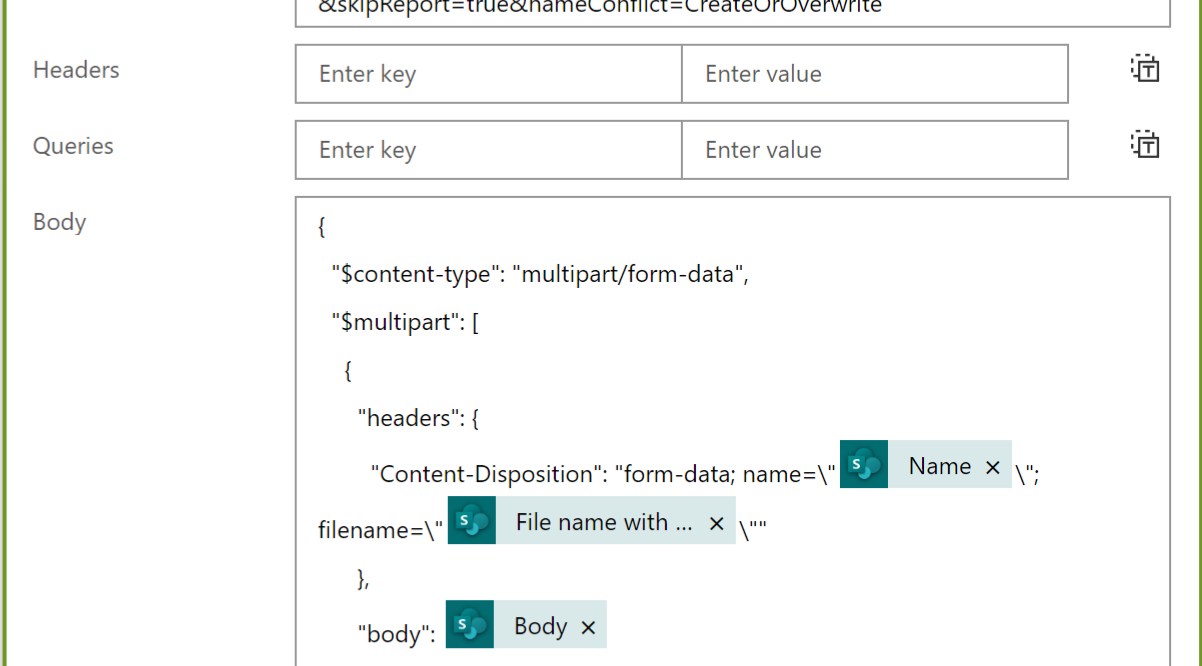
Here’s the correct JSON for the Body of the HTTP Request
{
  "$content-type": "multipart/form-data",
  "$multipart": [
    {
      "headers": {
        "Content-Disposition": "form-data; name=\"TestAPI\"; filename=\"TestAPI.pbix\""
      },
      "body": SharePoint File Content
    }
  ]
}
As you can see in the first screenshot, the text in red can be replaced with Power Automate Variables. I’m using the SharePoint Get File Properties (Name, File Name With Extension) and SharePoint Get File Content (.pbix File) connectors to get these values.

URL and Parameters
Here’s a sample URL. Replace red text with variables or hard code your values.
https://api.powerbi.com/v1.0/myorg/groups/12345678-1234-1234-1234-123456789abc/imports?datasetDisplayName=TestAPI&skipReport=true&nameConflict=CreateOrOverwriteskipReport=true means you can publish a Dataset only without publishing the Report!
Open-Source Power BI Publish App
The whole point of me researching this was to create a simpler way to publish Power BI files and manage pipelines. That app is available on GitHub:
https://github.com/cooptimize/Power-BI-Check-In-App

The App uses the Power Apps visual so it can sit inside of Power BI Desktop and provide a much more comprehensive publish experience. The initial one-time setup is a pain in the ass. But once you get it working you will wonder how you survived without it – saves me probably one minute per publish and is a repeatable process.
If nothing else, you can install the Power App Solution and see how the flows work!
Hat Tip
THANK YOU blogger/MVP Mohamed Ashiq Faleel for writing the post below. There were some pieces to put together, but without this blog I would not have solved this.

 Joel Leichty
Thanks for your post.
At the moment I’am stuck.
I do not know, how to use “Get File Properties” and “Get File Content” to receive the needed content for “body”: SharePoint File Content
Any help would be appreciated.
Thank you.
BR, Hp
LikeLike
Those are Flow steps using the SharePoint connector. It assumes you have a .pbix file stored in SharePoint or Teams.
LikeLike
Hello Joel, what do you have inside WorkspaceGUID variable?
LikeLike
WorkspaceGUID is from the URL in powerbi.com. Doesn’t have to be a variable, could be hard coded.
Ultimately what I’m doing in the Power BI App is using the SharePoint Title field to store the Workspace GUID. That way I have a mechanism to tie the Power BI file to one specific workspace for publishing.
LikeLike
Hi Joel, i am trying the same but i am getting error on HTTP action with status code 403, do i need to register an app in Microsoft intra ID?
LikeLike
If you go to the GitHub link, you can download a solution that includes the flow. That might help?
Yes, you need an App Id and it needs access to Power BI Workspace.
LikeLike